What PelQi Work is, and who can use it
Updated 18 October 2026
PelQi Work is the business side of PelQi. Instead of answering one question at a time, it takes on an outcome ("no proposal deadline is missed"), checks on it on a schedule, shows the evidence it used, and waits for a person's approval before anything leaves the business. It lives inside the same PelQi app as PelQi Home, kept completely apart from your household.
PelQi Work is by invitation during the pilot, or comes with PelQi Max (up to three workspaces).
Who can use it
- By invitation during the pilot. A business on the pilot starts a workspace and adds its people. Ask about the pilot from the PelQi Work page.
- With PelQi Max. A Max subscriber can start up to three workspaces of their own. Their runs use Max's weekly agent allowance.
- Added by an owner or admin. Anyone with a PelQi account can be added to a workspace by its owner or an admin, on any plan.
- Children never have PelQi Work.
Open PelQi Work
- Sign in to PelQi as usual.
- Choose Work in the sidebar (on a phone, More, then Work). It shows only if you are in a workspace or allowed to start one.
- Pick the workspace. The sections are Ask PelQi, Today, Responsibilities, Approvals, Activity, Connections, Memory and People.
- Choose Home at the top to go back to your household PelQi.
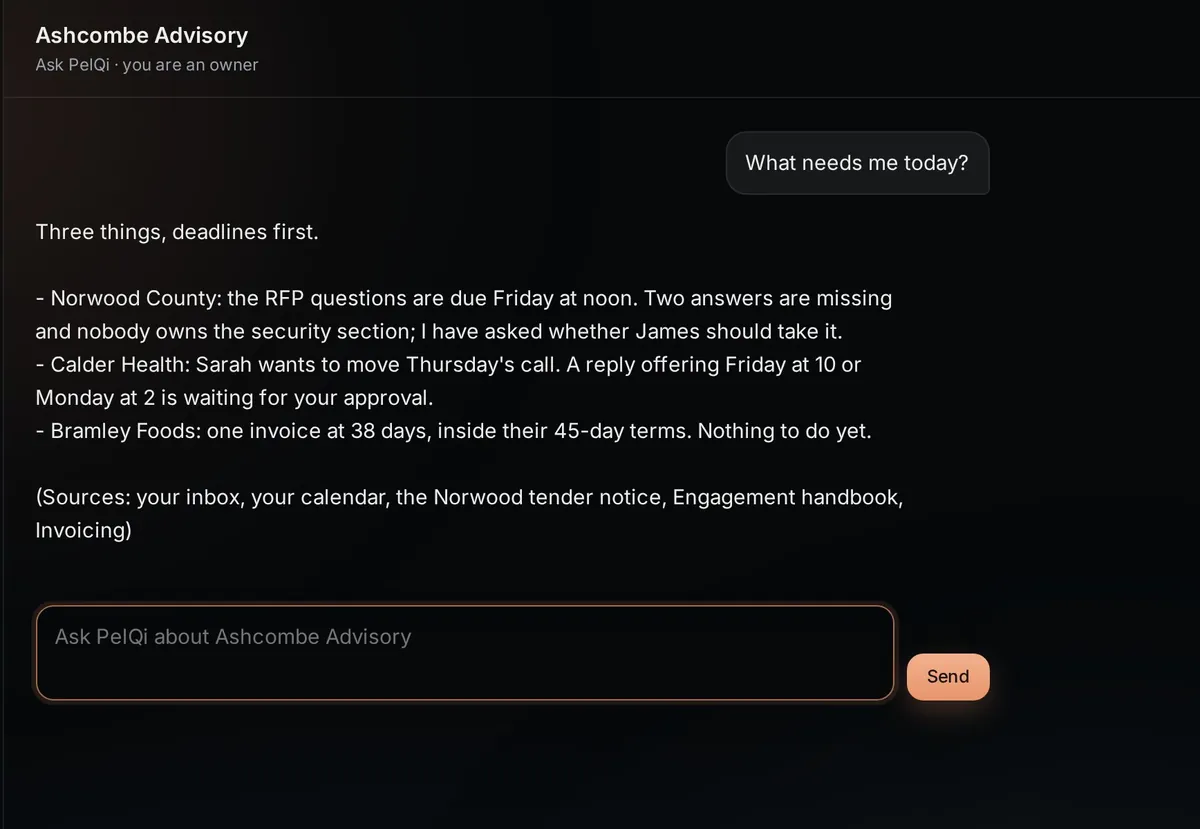
What it can and cannot do
- It owns outcomes you hand it as responsibilities, checks on them on a schedule, and keeps the evidence of every run.
- It reads, searches, drafts and prepares on its own. Anything that leaves the business waits for a person's approval.
- Your household's chats, memory and family never enter a Work prompt, and Work's memory never enters your Home chats.
- Each workspace is sealed from every other: people see only the workspaces they belong to.
- Children never have PelQi Work.
If it does not work
- No Work in the sidebar: you are not in a workspace yet. Ask your workspace owner to add you with the email you use for PelQi. On PelQi Max, Work shows so you can start one.
- A notice about how PelQi uses AI: choose I agree on it. Ask PelQi and activating a responsibility wait until you have.
- "PelQi Work is not available on this profile." You are in a child's profile. Switch back to your own PelQi.
Still stuck?
Email info@fortisdatagroup.com with what happened, what you expected and the device you use (for example, iPhone app, or Chrome on Windows). A person reads every message and answers within two working days. Never send a password or a code.
Common questions are also on the support page.