Talk or type: dictation, live voice and Read aloud
Updated 18 October 2026
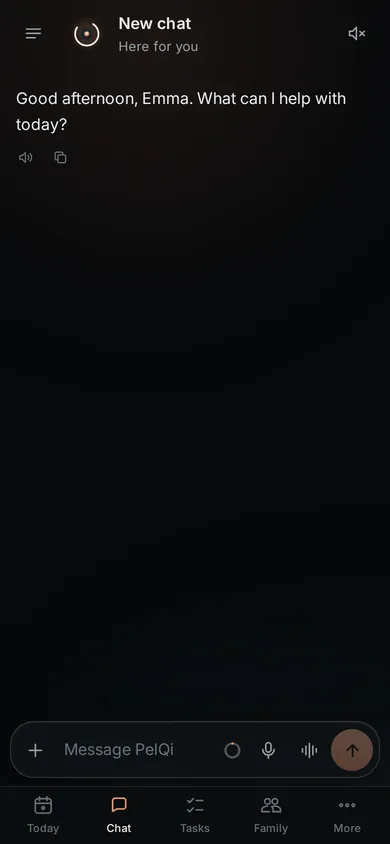
You can talk to PelQi the way you talk to a person, or type, and switch between the two in the same chat. The message box has two separate voice controls: the microphone puts your words in the box, and the waveform starts a spoken conversation.
Talking and typing work on every plan. Free includes 3 photos and about 6,000 characters of read aloud a day; paid plans 40 photos and 200,000 characters.
Type
- Type in the message box at the bottom of the chat and press Enter (or tap Send). Shift Enter starts a new line.
- To send a photo of a letter, a bill, the fridge or homework, tap + and choose Take a photo, Choose a photo or Upload a photo or screenshot. You can also paste a screenshot or drop a picture on the box.
Dictate a message
- Tap the microphone. PelQi shows "Recording" with a timer and Cancel.
- Speak. Tap the microphone again, pause for about four seconds, or reach two minutes, and it stops.
- Your words appear in the box where the cursor was. Nothing is sent: change them, keep dictating, or press Send.
Have a voice conversation
- Tap the waveform button (Start voice conversation). A full-screen view opens with PelQi's face.
- Talk. When you pause for about a second, PelQi answers out loud, sentence by sentence, and then listens again. No tapping between turns.
- To interrupt, just start talking: PelQi stops and hears you. Mute pauses listening; End (or Escape) closes it.
- Everything said is written into the same chat, so you can carry on by typing afterwards.
Read aloud
- Under each reply, Read aloud plays it in your PelQi voice, and Copy copies the text. Tap Read aloud again to stop.
- The speaker button at the top of the chat (Read replies aloud) reads every new reply out loud.
- Change the voice in Settings, You, Voice.
What it can and cannot do
- Voice and typing are one conversation: live voice continues the open chat and its words land in it.
- Dictation never sends by itself. You edit the words and press Send.
- Your voice is turned into text on PelQi's own servers; recordings are not sent to Anthropic.
- Live voice ends after two quiet minutes, when you leave the app, or when today's voice allowance runs out.
- Approval cards still need a tap. Saying yes in live voice does not send anything outward.
What you should see
In a voice conversation your lines are labelled You and PelQi's words light up as it says them. Approval cards still wait for a tap, exactly as when typing.
If it does not work
- "Microphone blocked" or nothing happens: see Fix the microphone.
- "I didn't catch that": PelQi was not sure what it heard, so it sent nothing. Move closer, cut background noise, and try again.
- PelQi is silent: see PelQi does not speak out loud.
- The day's voice is used up: read aloud and live voice stop until midnight where you are; typing still works. See Daily allowances.
Still stuck?
Email info@fortisdatagroup.com with what happened, what you expected and the device you use (for example, iPhone app, or Chrome on Windows). A person reads every message and answers within two working days. Never send a password or a code.
Common questions are also on the support page.