Scheduled tasks and reminders
Updated 18 October 2026
PelQi can do a job at a time you choose, once or on a repeat, and send you a short report: "every weekday at 7, check the school calendar and tell me what to pack". Or it can simply remind you: "remind me at 6pm to call Emma". Every scheduled task has a home on the Scheduled page.
Every plan. How many scheduled tasks, and how often they run, depends on the plan; plain reminders are free.
Two kinds
- A scheduled task is PelQi doing work at each time, with a report in its own chat ("Scheduled: ...").
- A plain reminder is only a notification. It uses no allowance and works on every plan.
Make one in chat
- Say what and when in your own words, by typing, by voice, or starting the message with
/scheduleor/remind. - PelQi reads it back on a Schedule this? card: when it runs (in your own time zone), the first run, and any reminder before it.
- Choose Schedule it (Set reminder for a plain reminder), or Not now. Nothing runs before you tap. A draft nobody confirms is dropped after 48 hours.
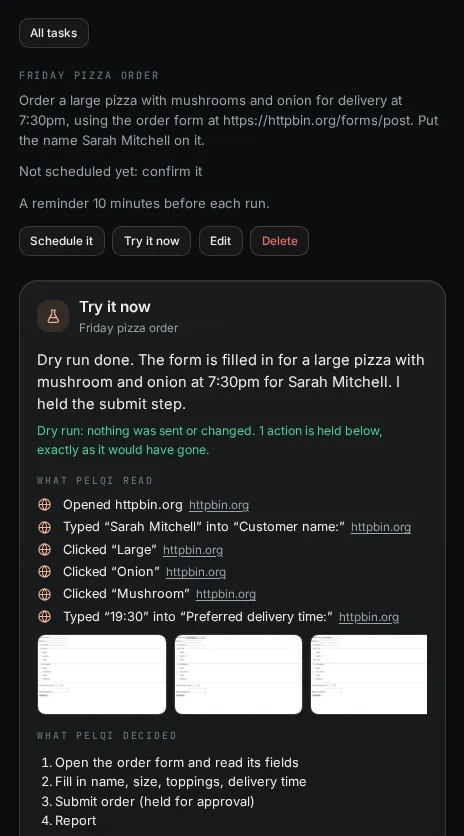
- Not sure it will do the right thing? Choose Try it now on the card for a dry run first. See Try it now.
The Scheduled page
Open Scheduled in the menu, just under Tasks (on a phone, tap More first). Your scheduled tasks and reminders are in three groups, shown only when they have something in them:
- Active: each with when it runs and the next run, like "Daily at 7:00 AM, in 11h" or "Every Monday at 8:00 AM, Oct 26". Manual tasks say "Manual, run it any time".
- Paused: waiting for you to resume them.
- Completed: one-off tasks that have run ("Ran once"), and tasks that stopped, with why.
Tap a task to open it. Tasks links here with Open Scheduled.
Make one on the Scheduled page
- Choose New task at the bottom right.
- Give it a Name and the Instructions: what PelQi should do each time, in your own words.
- Choose How often: Manual, Once, Daily, Weekdays, Weekly (tick the days), Monthly (pick the date), or on Max Hourly (every 1, 2, 3, 4, 6, 8 or 12 hours, counted from the time you pick) or Custom. Then the Time.
- Pick the Model and How it asks if your plan offers a choice (see below), Remind me first (a notification 5 to 60 minutes before each run) and Email me each report if you want it by email too.
- Under When to stop, choose an end date, a number of runs, or Stop when the job is done (see below). All are optional.
- Choose Read it back. PelQi shows what it will do, when, the first run and when it stops.
- Choose Schedule it (Save it for a manual task). Try it first saves it unconfirmed and runs a dry run. Change goes back to the form.
Prefer to just say it? Under Or just say it, type "Every Friday at 4, plan next week's dinners" and choose Read it back.
Manual tasks
Choose Manual for instructions you want to run whenever you like, such as "Rainy day ideas for two children". They have no times and no reminders; they run only when you choose Run now. They count towards your plan's scheduled tasks.
Custom schedules (Max)
Custom takes a standard five-part schedule: minute, hour, day of the month, month, day of the week. For example 30 7 * * 1,4 is 7:30 AM on Mondays and Thursdays, and 0 19 * * 3 is 7:00 PM every Wednesday. PelQi says it back in words as you type. It follows your own clock, like every other schedule, and runs at most once an hour.
When to stop
- Ends on: the last day it runs. After its last run it moves to Completed.
- Stop after this many runs: it moves to Completed after that many runs.
- Stop when the job is done: for instructions that say "until" or "stop once", like "check whether the library has the book in, and stop once it does". Each run checks, and when it has happened the task stops itself and its report says why.
A completed task can be run once more with Run again (it stays completed), or started again with Restart. Edit it first if its time or end date has passed.
Which model, and how it asks
- Model (Max): PelQi Fast, PelQi or PelQi Pro, as in chat. Other plans use PelQi.
- How it asks: Ask first is the default on every plan: anything that leaves home waits for your OK. On Max you can choose Ask every time (every change waits, even adding to a list) or Auto within my rules (only what you allowed under Auto in chat goes ahead). Calls, texts, payments and sign-ins always ask.
Run it from a link (Max)
Open a task and choose Make a run link. PelQi shows a private address once, with Copy. Something that sends a POST request to it, such as a shortcut on your phone, starts a run of that task. It is off until you make one, works for that one task only, and runs at most 6 times an hour. New run link replaces it and Revoke link turns it off. Anything outward still waits for your OK.
Change it later
Open the task on the Scheduled page. You can Run now, Skip the next one, Pause, Resume, Edit (the words, the time, the reminder, the model, when to stop) or Delete. Runs lists every run with what it did; tap one to open its report in the task's chat. You can also ask in chat: "pause the school calendar check", or "restart the bin day check".
What it can and cannot do
- It runs the job at each time whether the app is open or not, and reports in the task's own chat.
- Nothing runs until you choose Schedule it, and anything outward still waits for your OK in Approvals.
- Times follow your own clock: 7:00 stays 7:00 across daylight-saving changes, and schedules move with you if your time zone changes.
- A run is skipped, never borrowed from chat, when your allowance is used up.
- Children cannot schedule anything, reminders included.
Limits by plan
- Free: 1 scheduled task, weekly at most.
- Plus: 3, daily at most. Family: 5 for each person, daily at most.
- Max: 25, as often as every hour, using the weekly agent allowance. Custom schedules, the model choice, Ask every time and Auto, and run links are on Max.
- Manual tasks count towards these numbers, and so do messages you send on a schedule (Max). Completed tasks do not. The foot of the Scheduled page shows how many your plan has left.
- Plain reminders: 30 on every plan, free. Children cannot schedule anything.
- Ask PelQi for something more often than your plan allows, like "every 30 minutes", and it sets the closest it can (every hour on Max, once a day on Plus and Family, once a week on Free) and tells you.
What you should see
At each time, a notification with the short spoken summary. It opens the task's chat with What I did, What I found and Waiting for you. Anything outward, such as messaging a business, waits for your OK in Approvals.
If it does not work
- A run was skipped: your allowance was used up at that time. PelQi never borrows from the next day. See "You've used today's allowance".
- PelQi was offline at that time: it does one catch-up run when it is back, marked as late, never a burst.
- A run failed: PelQi tries again after 5, 15 and 45 minutes, then tells you and tries at the next time.
- The time is wrong: check your time zone in Settings, You: pick it from the Time zone list, or choose Use this device's. Schedules move with it and follow your clock across daylight-saving changes. Your children's profiles on the same clock move too.
- A custom schedule is refused: PelQi says which part is wrong, for example "The hour must be 0 to 23". It also refuses one that runs more than once an hour.
- It moved to Completed: it reached its end date or number of runs, or the job was done. Choose Restart to start it again.
- The run link says the task is paused or not running: resume or restart the task. A link that says "Not found" was replaced or revoked; make a new one.
Still stuck?
Email info@fortisdatagroup.com with what happened, what you expected and the device you use (for example, iPhone app, or Chrome on Windows). A person reads every message and answers within two working days. Never send a password or a code.
Common questions are also on the support page.