Shared lists
Updated 18 October 2026
Lists are shared with everyone in your household. Anyone can add to them by typing or by telling PelQi, and ticking an item off shows for everybody straight away.
Shared lists work on every plan.
Add to a list
- Just say it: "add milk and eggs to the shopping list", or type /list milk and eggs.
- Or choose Lists in the sidebar, type in Add to Shopping under the list, and choose Add.
- To make a new list, type its name in New list, like chores or packing and choose Make list.
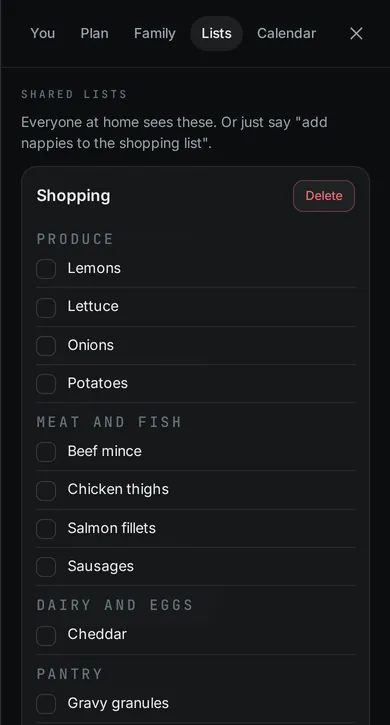
Tick, clear and remove
- Tap an item to tick it off; tap again to untick.
- Clear ticked removes everything ticked from that list. The cross beside an item removes it.
- Delete removes the whole list, after you confirm. Only grown-ups can delete a whole list; children can add, tick and clear.
What it can and cannot do
- Lists are shared by everyone at home, children included.
- An item already on the list and not ticked off is not added twice.
- Each item holds up to 500 characters.
- Meal plans add ingredients grouped by aisle.
What you should see
Items from a meal plan are grouped by aisle. Something already on the list and not ticked off is not added twice. An item can be up to 500 characters.
If it does not work
- Someone at home cannot see the list: they must be in your household. See Set up your household.
- PelQi put it on the wrong list: name the list in your message ("add sun cream to the packing list").
Still stuck?
Email info@fortisdatagroup.com with what happened, what you expected and the device you use (for example, iPhone app, or Chrome on Windows). A person reads every message and answers within two working days. Never send a password or a code.
Common questions are also on the support page.