Responsibilities: handing PelQi an outcome
Updated 18 October 2026
A responsibility is an outcome PelQi stays accountable for, such as "every customer email gets a reply within a day". You describe it; PelQi drafts how it will work; nothing runs until a person activates it.
Delegate a responsibility
- Open Responsibilities and find Delegate a responsibility.
- Describe the outcome you want PelQi to own, for example "every weekday, check the news for anything about our customers and tell me what matters", and choose Draft it.
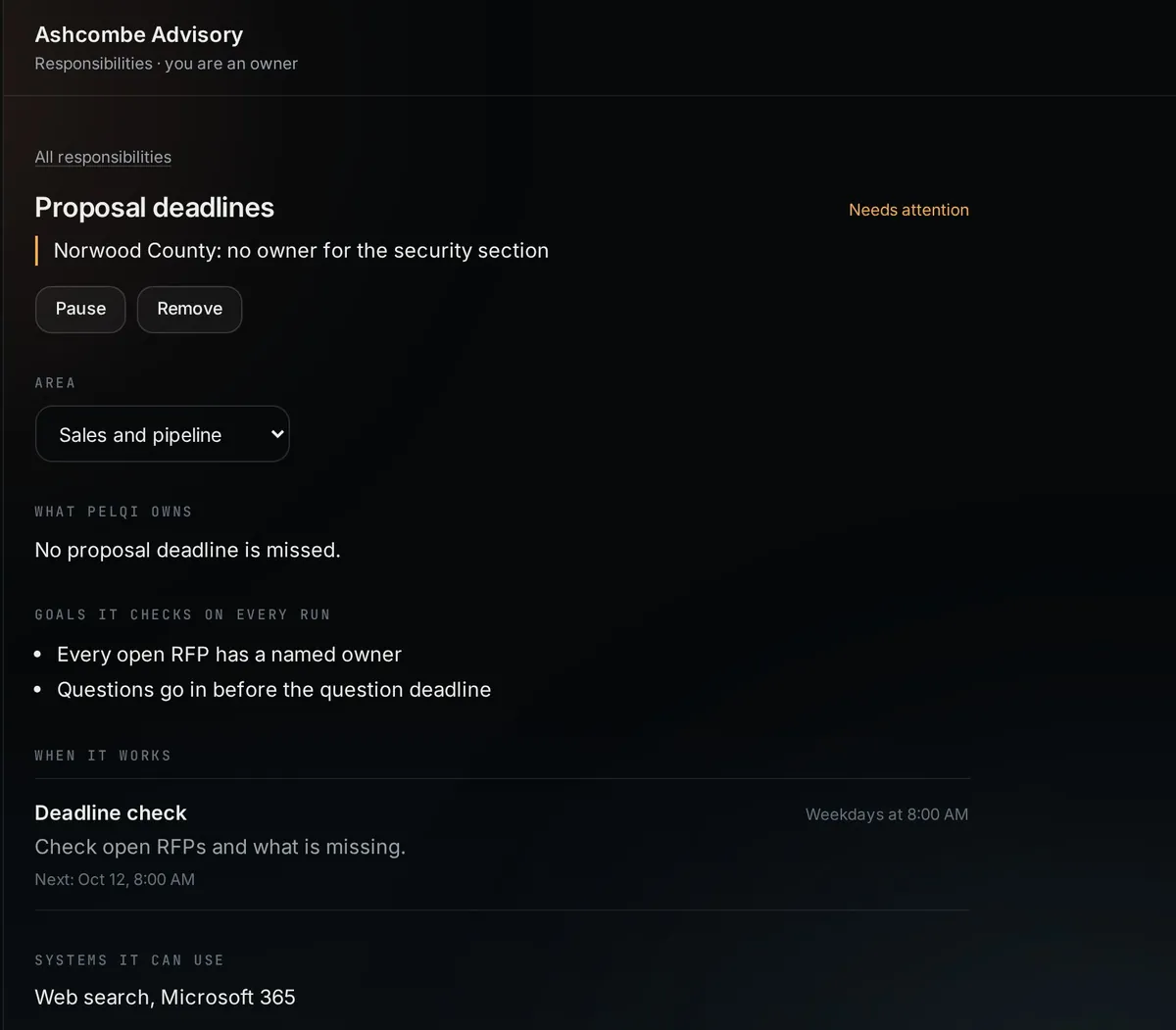
- Check the draft: The outcome PelQi owns, the Goals PelQi checks on every run, What PelQi does and When, Systems it can use, and the rules: May do on its own, Needs a person's approval and Never.
- Choose Save as draft, then Try it now to see a dry run with nothing leaving, and Activate when you are happy.
Day to day
- Each responsibility shows its health (Healthy, Needs attention, Blocked or Waiting on you), the reason, and what PelQi will do next.
- Run now starts a run straight away. Pause and Resume stop and restart it; Remove takes it away for good, with its run history, so use Pause to keep it.
- Triggers start a run when something changes: a matching email, a Zoho CRM change or a deadline coming up.
- Activity lists everything done in the workspace, by people and by PelQi, newest first.
- Owners have a stop switch: Stop all of PelQi's work here stops every run, trigger and approved action at once until an owner chooses Restart PelQi's work. While it is stopped, each responsibility and Approvals say so.
- Schedules use the workspace's time zone, shown under When it works. A new workspace takes the time zone of the person who started it; an owner can change it under Responsibilities, Time zone.
What it can and cannot do
- Reading, searching, drafting and preparing happen on their own.
- Anything that leaves the business, such as sending an email or updating a record, waits in Approvals.
- Each run files a report with what it read, a check against every goal, and its evidence links.
- Nothing runs until a person activates the responsibility, and the stop switch blocks approved actions too.
If it does not work
- "Waiting to be activated": a person still needs to choose Activate.
- A run was skipped on Max: this week's agent allowance is used up. Runs start again after Monday.
- It runs at the wrong hour: check the workspace's time zone under Responsibilities, Time zone.
Still stuck?
Email info@fortisdatagroup.com with what happened, what you expected and the device you use (for example, iPhone app, or Chrome on Windows). A person reads every message and answers within two working days. Never send a password or a code.
Common questions are also on the support page.