The agent dashboard and stopping agents
Updated 18 October 2026
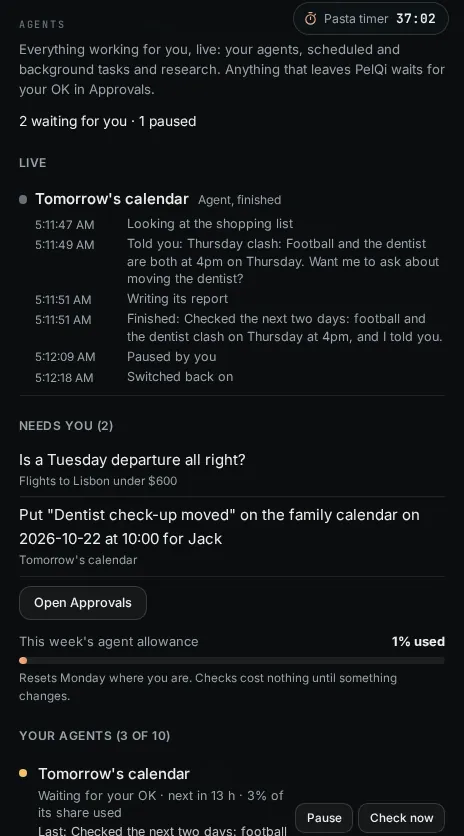
On PelQi Max the Agents page is one live view of everything working for you. Steps appear as they happen, on every screen you have open, and every agent can be paused or stopped in one tap.
The agent dashboard comes with PelQi Max.
What the dashboard shows
- A summary line, such as "1 working now, 1 waiting for you, 1 paused", or "All quiet. Nothing needs you."
- Live: the newest runs with their last steps and the time of each.
- Needs you: the first few items waiting in Approvals, and Open Approvals.
- This week's agent allowance, how much is used, and that it resets on Monday.
- Each agent with its status (Watching, Working now, Waiting for your OK, Paused, Stopped, Draft, Needs a look), last and next check, and Pause or Switch back on and Check now.
- Scheduled tasks and reminders with Pause, Resume and Run now, and In the background: open tasks with Pause, Resume and Run now, and research with Pause, Resume and Stop.
Stop every agent at once
- Choose Stop all agents on the Agents page or in your account menu, or say "stop my agents" in chat or on a PelQi call.
- Every check and run stops, including approvals you already gave to agents, until you start them again.
- To start again, open Agents and choose Start them again.
What it can and cannot do
- It shows only your own agents, tasks and research, and every button uses the same checks and limits as the thing it controls.
- The live feed shows while you have a PelQi screen open; the full record is always kept.
- Stop all agents also blocks approvals you already gave to agents.
- Starting agents again happens in the app, not by voice or in Teams.
Where PelQi opens
On Max, PelQi opens on Today with your agents beside the day. To open on chat instead, change When PelQi opens in Settings, You.
If it does not work
- Steps do not move: the live feed shows only while a screen is open. Reload the page; the record is never lost.
- An agent shows Needs a look: three checks or runs in a row failed. Open it to see why. See My agent is paused.
Still stuck?
Email info@fortisdatagroup.com with what happened, what you expected and the device you use (for example, iPhone app, or Chrome on Windows). A person reads every message and answers within two working days. Never send a password or a code.
Common questions are also on the support page.