Send files in chat
Updated 18 October 2026
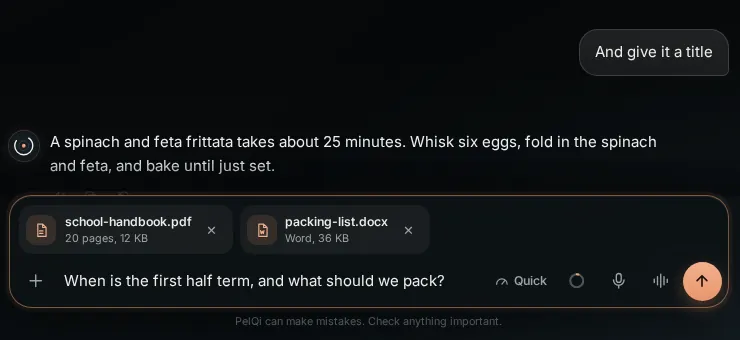
Attach a school handbook, a contract or a spreadsheet to a message and ask about it: "when is the first half term, and what should we pack?" PelQi reads the whole file and, for a PDF, tells you the page it found the answer on.
Files in chat come with PelQi Plus, Family and Max.
Attach a file
- In the message box, tap + and choose Attach a file, or drag files onto the message box.
- The files upload at once and wait in a tray above the box, with their name, pages or kind, and size. Tap the cross to remove one.
- Type your question and send.
What it can and cannot do
- PDF (up to 100 pages, not password-locked), Word, Excel, PowerPoint, text files (txt, md, csv, tsv, json) and pictures.
- Plus and Family: 10 MB a file, 4 a message, 20 a day. Max: 20 MB a file, 8 a message, 60 a day. One message's files together stay under 24 MB.
- Files count towards your Files space.
- PelQi reads every page of a PDF and gives the page its answer came from. Nothing in a file is run or opened by another program.
- A file that went with one message cannot be sent again with another; attach it again instead. Children cannot send files.
Follow-up questions
PelQi keeps a file in view while its message is among the last six in the chat, so you can keep asking. After that it asks you to attach it again. Files go with the chat: deleting the chat deletes them.
Text inside a file is treated as information, never as instructions to PelQi.
If it does not work
- The file is refused: macro-enabled Office files, locked PDFs and anything that is not one of the kinds above are refused. See A file will not upload.
- Free plan: you see a line about Plus and Family. See Upgrade your plan.
Still stuck?
Email info@fortisdatagroup.com with what happened, what you expected and the device you use (for example, iPhone app, or Chrome on Windows). A person reads every message and answers within two working days. Never send a password or a code.
Common questions are also on the support page.