PelQi's browser, Take over and approvals
Updated 18 October 2026
For some jobs PelQi opens a website in its own browser: searching a shop, reading opening hours, filling in a form. You watch it live on a card in the chat, with PelQi's pointer moving to each thing before it clicks or types, and you can stop it or take over whenever you like.
Every plan, for grown-ups. Free has 40 browser steps a day, paid plans 300.
Watch PelQi browse
- Ask for something that needs a website, for example "check the opening hours on the library's site and whether I can book a study room".
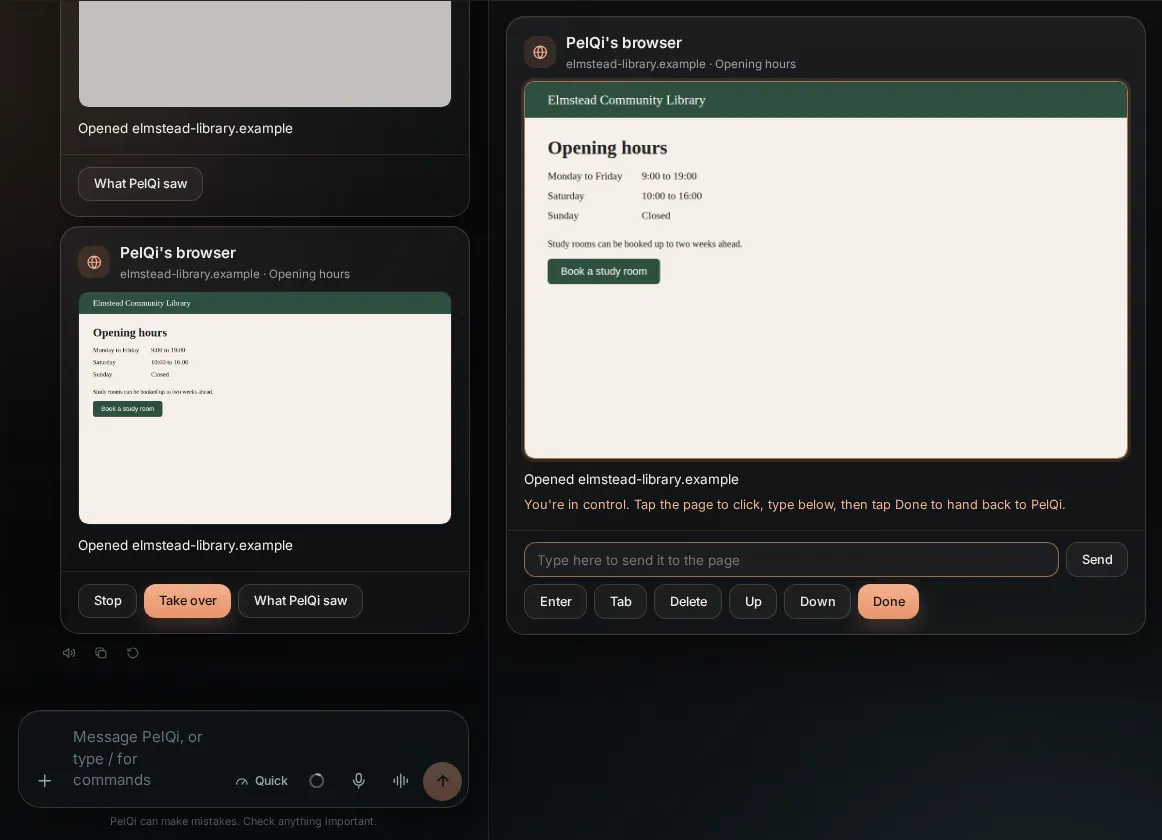
- A PelQi's browser card appears in the chat with a live window of the page, the site and what PelQi just did. Live shows beside the name while the window is moving.
- Watch PelQi's orange pointer move to each link, box or button before it clicks, and the words appear in a box as PelQi types them.
- The window also opens larger in the side canvas.
- What PelQi saw shows every step with its screenshot.
- Stop closes the browser at once and ends PelQi's turn.
Take over
- Choose Take over. PelQi says "You're in control."
- Click or tap the live window to click at that point. Scroll it with your mouse wheel or by dragging a finger on it.
- On a computer, click the page and type: your keys go straight to the page. On a phone, type in the box and choose Send. Enter, Tab and Delete are there too, and Up and Down scroll the page.
- Choose Done to hand back. PelQi is told what you did, never what you typed.
What it can and cannot do
- It can open a site, use its search, follow links, fill in a form, choose from a list, press keys, scroll and go back.
- Pressing anything that would submit a form, sign in, pay, buy, order, book, send, post, delete, subscribe or agree puts a card in the chat: "Let PelQi click ... on example.com?", with Allow and Not now. Allowing it runs exactly that one step.
- Typing your own details (email, phone, address) into a site needs a card too.
- PelQi never types passwords, card numbers, security codes or one-time codes, even with your OK. It asks you to Take over and type them yourself.
Limits
- One browser for you at a time in chat. It closes after five quiet minutes, and after 30 minutes whatever happens.
- Browser steps a day: Free 40, paid plans 300. Every step uses your daily allowance, which usually runs out first.
- Not for children, and never on a phone call, because nobody can watch.
- The live window is for you only, on up to three of your screens at once. Background tasks keep a screenshot of each step instead.
- It only moves while the card is on screen. Scroll it away or switch tabs and it pauses, which saves your data.
If it does not work
- "PelQi's browser is busy right now": see that article.
- "The browser session has ended": it closed after five quiet minutes. Ask again to start a new one.
- A step was not done after you allowed it: the page changed in the meantime, so PelQi did not press something different. Ask it to try again.
- The window shows a still picture and no Live: the page is not changing, or the live window could not start. Scroll the card back into view or reopen the chat. You can still watch each step's screenshot, Stop and Take over.
- The window is jumpy on a phone: on a slow connection PelQi skips frames so you always see the newest page. Wi-Fi helps.
Still stuck?
Email info@fortisdatagroup.com with what happened, what you expected and the device you use (for example, iPhone app, or Chrome on Windows). A person reads every message and answers within two working days. Never send a password or a code.
Common questions are also on the support page.