Routines
Updated 18 October 2026
A routine runs several steps in a row when you say a phrase, at a time you choose, at sunrise or sunset, or before a family event. Most steps read what PelQi already holds, so routines are free, work when your allowance is spent, and give the same answer in the app, on the kitchen screen and on the phone.
Routines work on every plan: Free 2, Plus 10, Family 20 shared at home, Max 50.
Add a ready-made routine
- Open Routines from Search, or choose Manage beside Routines on Today.
- Under Add a routine, choose Add beside Good morning, Bedtime, We're leaving or Dinner time.
- Say its phrase ("good morning") or tap its button on Today or the kitchen screen.
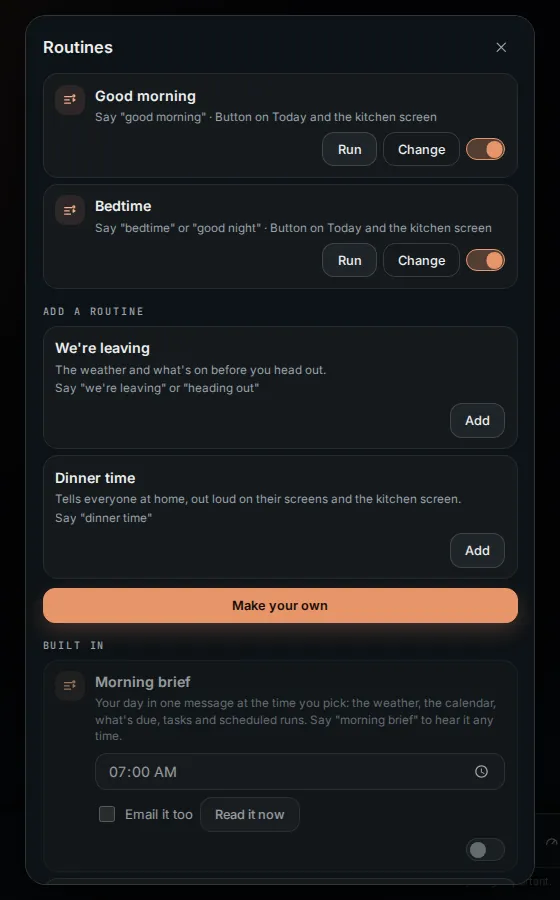
Make your own
- Choose Make your own. Give it a name and the words that run it.
- Pick when it runs: by its words, At a time on chosen days, At sunrise or At sunset, or Before a family event.
- Choose Add a step for each step: say something, the weather, today's calendar, reminders, the day ahead, the morning brief, read a list, announce, start a timer, set an alarm, quiet hours until a time, a smart home step, or Ask PelQi a question.
- Tick Button on Today and the kitchen screen if you want a button, and save.
What it can and cannot do
- Only an "Ask PelQi something" step uses the allowance; every other step is free and works when the allowance is spent.
- The same phrase works in chat, live voice, the kitchen screen and on a call.
- Children run the household's routines but cannot make or change them.
- Announcing steps need Plus, Family or Max. Smart home steps ask first for locks, garage doors and alarms.
What you should see
Run tries a routine now and Change edits it. Built-in routines, like the morning brief, are listed under Built in and can be switched off there. Only an Ask PelQi step uses your allowance.
If it does not work
- Sunrise or sunset needs your town: add it in Settings, You first.
- A routine is paused after a plan change: routines beyond your plan's number stay saved but pause.
- Children can run shared routines but cannot make or change them.
Still stuck?
Email info@fortisdatagroup.com with what happened, what you expected and the device you use (for example, iPhone app, or Chrome on Windows). A person reads every message and answers within two working days. Never send a password or a code.
Common questions are also on the support page.