Word, Excel, PDF and PowerPoint documents
Updated 18 October 2026
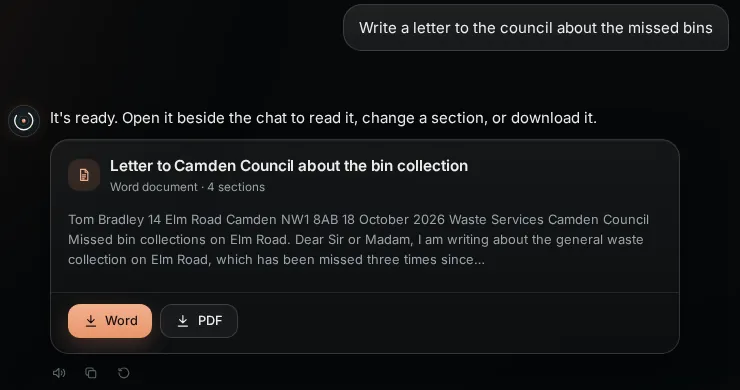
"Write a letter to the council about the missed bins" or "make me a budget for November": PelQi writes a real Word, Excel, PDF or PowerPoint file and puts it on a card in the chat for you to open or download.
Documents come with PelQi Plus, Family and Max.
Make a document
- Ask in chat, saying what kind of file you want if it matters ("as a Word document", "a spreadsheet").
- A document card appears with the title, what it is, the version and a glimpse of the text.
- Choose a format to download. Word documents and PowerPoint decks also download as PDF, a PDF also as Word, spreadsheets as Excel.
- Choose Open beside chat to read it in the side canvas.
Change it
- In the side canvas, tap the pencil on a part and say what should change ("make this firmer"). PelQi rewrites just that part as a new version.
- Or ask in chat. Every version is kept; pick an older one and choose Restore this version to go back.
Save to OneDrive
Save to OneDrive appears on the card only if you are in a PelQi Work workspace whose Microsoft 365 connection lets PelQi save files. It asks for your OK in Approvals first, then saves that version to your OneDrive.
What it can and cannot do
- It makes Word, Excel, PDF and PowerPoint files from what it writes, with real headings, lists, tables, and in spreadsheets formulas and totals.
- Changing one part makes a new version and leaves the other parts as they were. Every version is kept with the chat.
- Formulas that would reach outside the spreadsheet, such as a web address, are kept as plain text.
- It never saves anywhere outside PelQi without your OK.
- New documents a day: Plus and Family 5 each, Max 50. New versions do not count. Free and children cannot make documents.
- Deleting the chat deletes its documents and every version.
If it does not work
- PelQi replied in the chat instead: ask again for "a Word document" or "a PDF".
- A download does not open: download it again in another format, for example PDF.
Still stuck?
Email info@fortisdatagroup.com with what happened, what you expected and the device you use (for example, iPhone app, or Chrome on Windows). A person reads every message and answers within two working days. Never send a password or a code.
Common questions are also on the support page.