The side canvas
Updated 18 October 2026
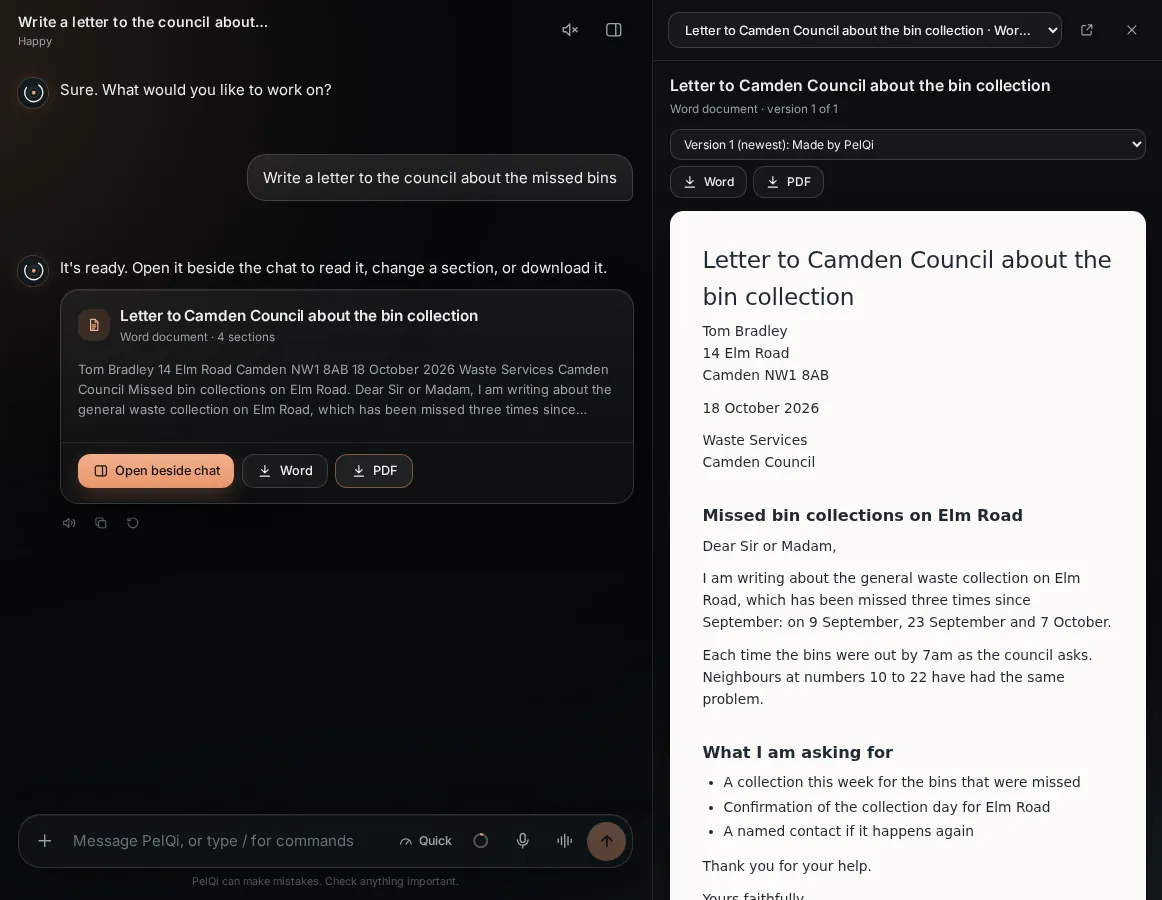
The side canvas opens beside the chat to show something larger: a document you can change part by part, a chart, PelQi's live browser, a research run or a dry run result.
Every plan. Not in a child's PelQi.
Open it
- Choose Open beside chat on a document or analysis card.
- Or use the canvas button in the chat header, or press Ctrl + . (Cmd + . on a Mac). Escape closes it.
- A picker at the top lists everything in this chat, newest first.
What you can do in it
- Documents: read them as pages, tap the pencil on a part to change it ("What should PelQi change in this part?"), pick a version, download.
- Charts: see the chart large and each table whole.
- PelQi's browser: the same session as the card in the chat, with Stop, Take over and What PelQi saw. See PelQi's browser.
- Research and dry runs: follow a research run live, or read a Try it now result.
On a computer and on a phone
- On a computer, the canvas is a column on the right. Drag its left edge to make it wider or narrower; your width is remembered. Choose Open in its own window to pop a document or chart out.
- On a phone and in the app, it opens full screen with a close button, and never opens by itself.
- Each chat remembers whether its canvas was open. Children do not have the canvas.
What it can and cannot do
- It shows only what was made or done in the open chat: documents, charts, PelQi's browser, research runs and dry run results.
- You can change a document part by part here; spreadsheets change by asking in the chat.
- Its browser view is the same session as the card in the chat, so stopping or taking over in one does it in both.
If it does not work
- The canvas button is missing: this chat has nothing to show yet. It appears once PelQi makes a document, chart or browser session.
- "Nothing to show yet": the item was deleted, or the chat is new.
Still stuck?
Email info@fortisdatagroup.com with what happened, what you expected and the device you use (for example, iPhone app, or Chrome on Windows). A person reads every message and answers within two working days. Never send a password or a code.
Common questions are also on the support page.