Approvals in PelQi Work
Updated 18 October 2026
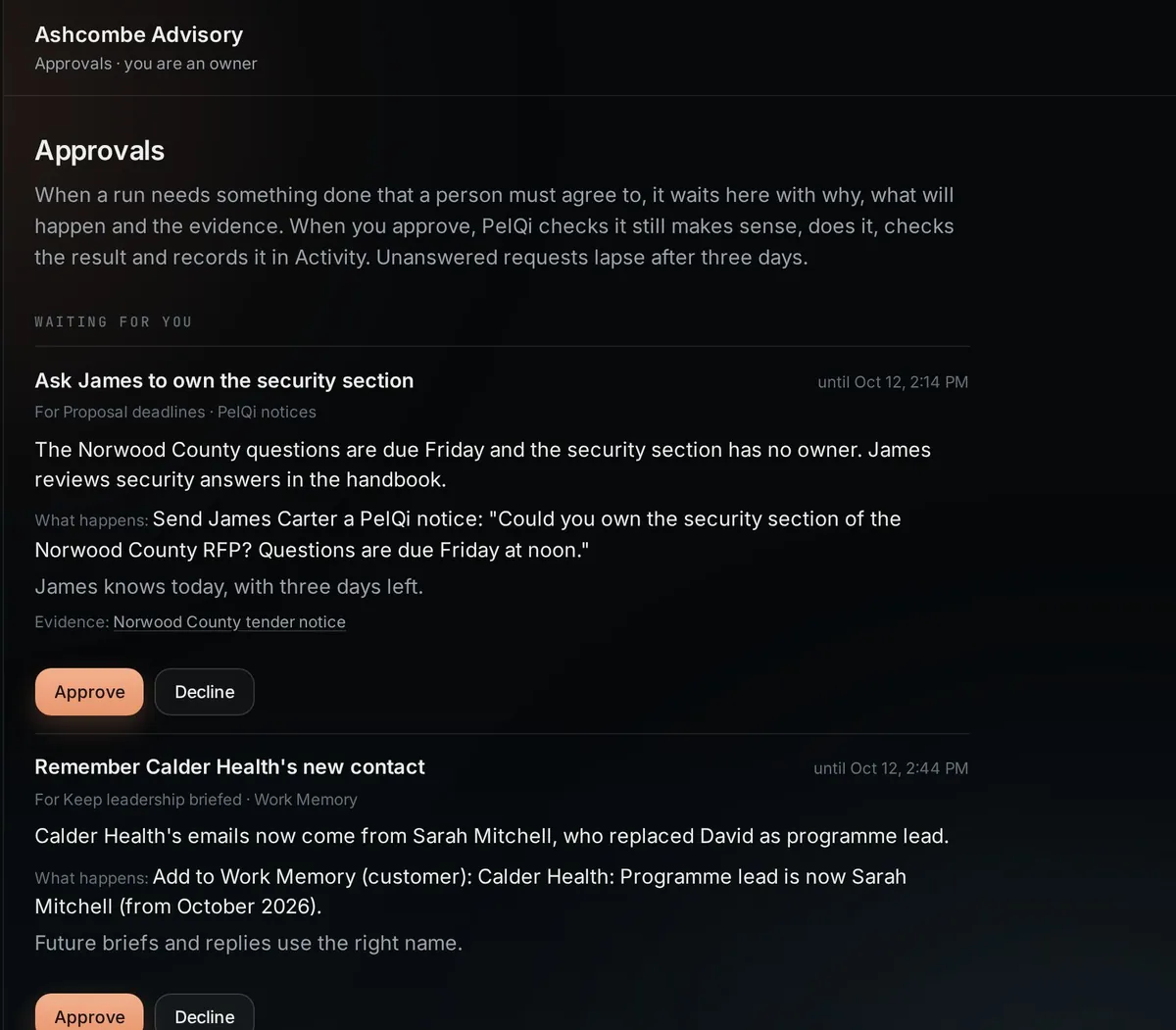
Nothing leaves the business without a person's OK. When a run wants to send, update or submit something, the request waits in the workspace's Approvals with the reason, exactly what will happen, and the evidence PelQi used.
Decide
- Open Approvals in the workspace (or Approvals in your PelQi account menu, which gathers requests from every workspace you can decide in).
- Read what PelQi wants to do, What happens, and the Evidence links.
- Choose Approve or Decline. When you decline, you can say why; PelQi reads it on its next run.
- After you approve, PelQi checks the request still makes sense, does it, checks the result and records it in Activity.
- Away from a screen, call PelQi on (910) 348-7364 and say your phone PIN. PelQi reads what is waiting, and a clear yes on the call decides it. See Call PelQi.
Who can decide
Your workspace role decides. Some requests say "An owner or admin decides this one", and Today marks them the same way instead of "Your decision". Only the owner of a mailbox can approve sending from it.
When requests lapse
Unanswered requests lapse after three days and move to history as Lapsed. PelQi asks again on a later run if it still matters.
What it can and cannot do
- Each request shows what PelQi wants to do, why, what will happen and the evidence it used.
- On approval, PelQi checks again before acting, acts as the person who approved, and reads the result back.
- Each request is decided once, whether in the app, in your account's Approvals, in Teams or on a PelQi call.
- The workspace stop switch blocks approved actions too.
If it does not work
- You cannot approve: your role does not allow it. Ask an owner or admin.
- "Approved, not done": PelQi re-checked and something had changed, or the system refused. The reason is in Activity.
Still stuck?
Email info@fortisdatagroup.com with what happened, what you expected and the device you use (for example, iPhone app, or Chrome on Windows). A person reads every message and answers within two working days. Never send a password or a code.
Common questions are also on the support page.