The Approvals inbox
Updated 18 October 2026
PelQi never sends, calls, books or buys on its own. When it needs your OK, the request waits in Approvals, wherever it came from: a chat, a background task, a scheduled run, an agent, your smart home or PelQi Work.
Open Approvals
- Open your account menu (your initial, bottom left) and choose Approvals. The count shows how many are waiting.
- Or tap the Now running line ("1 running, 3 need you") above your account, the line at the top of Tasks, or open the command palette and choose Approvals.
- Notifications that say "PelQi needs your OK" open it too.
Decide
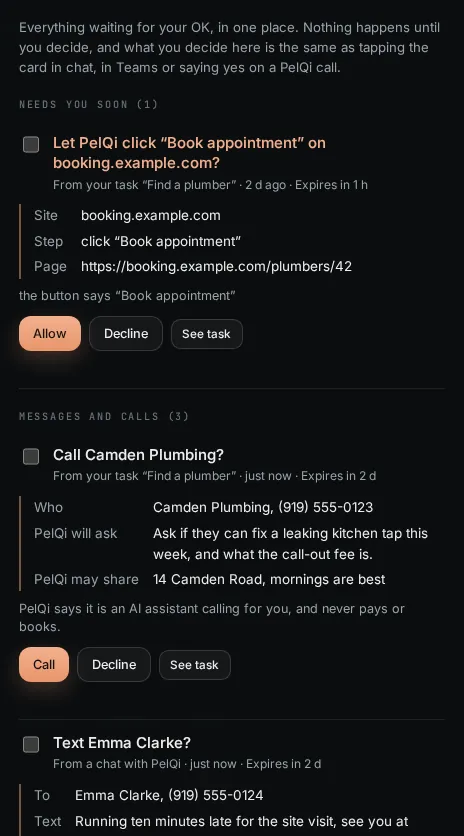
- Each item says exactly what will happen: who it goes to and the words for a call or text, the site and the button for a browser step, the schedule in words for a schedule.
- It also says who asked (a chat, a task by name, an agent) and when it lapses.
- Choose the allow button (it says Allow, Send, Call, Save, Schedule it, Set reminder or Approve to match), or Decline. You can add a reason when you decline; PelQi reads it next time.
- To decline several at once, tick them, add one reason, and decline them together.
How it is grouped
Needs you soon comes first (anything lapsing within two hours). Then Browser steps, Smart home, Messages and calls, Scheduled tasks, Changes PelQi checked with you, Questions from tasks, Work, Agents, and Chores and rewards. Decided items move to History for 30 days, with the outcome: Done, Declined, Failed or Lapsed.
When things lapse
- Cards from chat and tasks: after two days.
- A schedule waiting to be confirmed: after 48 hours.
- A browser step from a chat: only while that browser is open.
- A smart home request: after 15 minutes.
- PelQi Work requests: after three days.
- Questions from tasks wait for your answer.
What it can and cannot do
- It gathers every request in one list, whatever made it, and each one says exactly what will happen.
- Only you decide your own items. PelQi Work requests need the workspace role that may decide them.
- Each item is decided once, even if you tap in two places at the same moment.
- What a dry run held never appears here: those are records, not requests.
- Children have no Approvals.
What you should see
The item leaves the list and PelQi carries on. Deciding in Approvals is the same as tapping the card in chat, pressing it in Teams, or saying yes on a PelQi call. It only ever happens once, even if you tap twice.
If it does not work
- The item says it lapsed: ask PelQi again; it will make a fresh request.
- An item you decided elsewhere is still showing: it updates within a minute. Pull down or reopen Approvals.
- No Approvals in a child's PelQi: children have no inbox. A grown-up decides.
Still stuck?
Email info@fortisdatagroup.com with what happened, what you expected and the device you use (for example, iPhone app, or Chrome on Windows). A person reads every message and answers within two working days. Never send a password or a code.
Common questions are also on the support page.