Set up your household and invite a grown-up
Updated 18 October 2026
Every grown-up gets their own home when they sign up ("Emma's home"). Invite the other grown-ups you live with so you share lists, the family calendar and notes. Each person's chats and memory stay private to them.
Invite a grown-up
- Open Family in the sidebar (on a phone, the Family tab or More, then Household).
- Under Invite a grown-up, choose Make an invite code. PelQi shows an eight-character code and a link.
- Choose Share to send the link (on a computer it copies the link), or read them the code. It works for 7 days.
- They open the link and make their own PelQi. At the end of sign-up they join your home.
- If they already have a PelQi, they open Family, type the code under Join another home and choose Join.
Leave a note for someone at home
Under Leave a note, pick who it is for, type it ("Football moved to 5") and choose Leave it. PelQi passes it on the next time they open it. You can also just tell PelQi: "Tell Tom football moved to 5."
What is shared and what is private
- Shared at home: lists, the family calendar, notes to each other, timers on the kitchen screen, announcements and household routines.
- Private to you: your chats, what PelQi remembers about you, your connected accounts and your files (unless you put them in the Home space).
What you should see
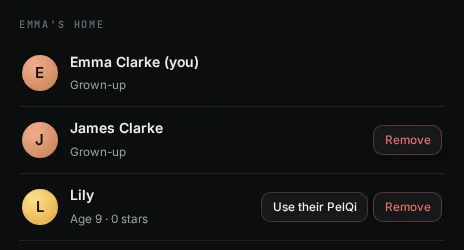
The person you invited appears in Family as a grown-up. Anything either of you adds to a list or the family calendar shows for both of you straight away.
If it does not work
- The code does not work: codes last 7 days. Make a new one and send that.
- They signed up without the link: they can still join with the code under Join another home in their own Family.
- "That home is full" or "That invite code did not work" at the end of sign-up: their own PelQi is made anyway. Make room or make a new code, then they join from Family.
- Too many people: Free and Plus allow 3 people at home with 1 child; Family and Max allow 6, with up to 4 children. See Who a plan covers at home.
- Removing someone: in Family, choose Remove next to them. An empty home is removed, and the last grown-up cannot leave children behind.
- Leaving a home you joined: in Family, choose Leave under Leave this home. You get a home of your own again, on your own plan; your chats and memory come with you, and the shared lists and calendar stay.
Still stuck?
Email info@fortisdatagroup.com with what happened, what you expected and the device you use (for example, iPhone app, or Chrome on Windows). A person reads every message and answers within two working days. Never send a password or a code.
Common questions are also on the support page.