Connect your Microsoft account
Updated 18 October 2026
Connect your own Microsoft account and PelQi can see your calendar and your inbox. Your Outlook events show in your morning brief, on the Today board and in routines, and you can ask "what's new in my inbox?". PelQi only reads: it cannot send, reply, move or delete mail, or change your calendar.
Your Microsoft account connects on PelQi Plus, Family and Max, for grown-ups.
Before you start
- You need PelQi Plus, Family or Max. On Free, the Microsoft account section offers See plans instead.
- A personal Microsoft account (an Outlook.com, Hotmail or Live address) works straight away.
- A work or school account works only if your organisation lets people approve apps for themselves. See When your organisation blocks PelQi.
Connect it
- Open your account at the bottom of the menu (your name and plan) and choose Connections. On a phone, tap More, then your account.
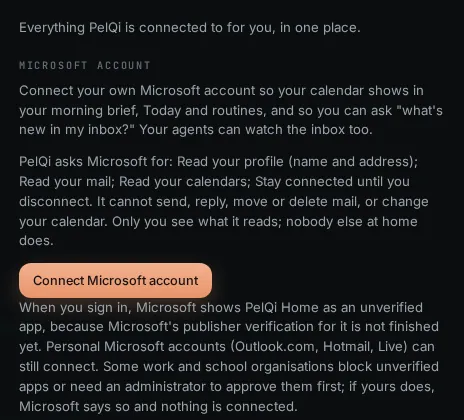
- Under Microsoft account, read what PelQi asks for: your profile (name and address), your mail and your calendars, read only, and to stay connected until you disconnect.
- Choose Connect Microsoft account. Microsoft's own sign-in page opens.
- Pick or sign in to the account you want. Microsoft shows PelQi Home as an unverified app; that is expected for now, see Why Microsoft says "unverified".
- Check the permissions Microsoft lists and choose Accept.
What it can and cannot do
- It reads your calendar and your inbox: the next eight days of events, the unread count, and an email when you ask for it.
- It cannot send, reply, draft, move or delete mail, or add or change calendar events.
- Only you see what it reads. Nobody else at home does, and the family's hour-before reminders stay family events only.
- On Max, your agents can watch this inbox for you.
- One Microsoft account per person. Children never have it.
What you should see
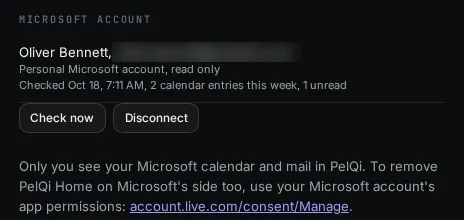
You come back to PelQi with "Microsoft account connected. Your calendar shows in a moment." The section then shows your name and address, whether it is a personal or a work or school account, and when PelQi last checked, how many calendar entries it found this week and how many emails are unread.
PelQi copies the next eight days of your calendar and refreshes it every 15 minutes. Check now refreshes it straight away. Your Outlook events are marked as Outlook or Microsoft 365 on Today and in your brief. Only you see them; nobody else at home does.
Things to try
- "What's new in my inbox?"
- "Read me the email from the school."
- "What's on my calendar tomorrow?"
PelQi can draft a reply in the chat for you to copy, but it cannot send it through this connection.
If it does not work
- "Microsoft sign-in was cancelled, so nothing was connected." You closed the page or chose Cancel. Choose Connect Microsoft account again.
- An organisation message such as "needs an administrator to approve" or "does not allow PelQi Home": see Microsoft "did not allow" PelQi.
- "Microsoft asked to sign in again" under your account: choose Reconnect and sign in once more. This happens if you changed your Microsoft password or removed PelQi on Microsoft's side.
- "Paused: your plan no longer includes connections." Your plan changed to Free. Nothing is read until you are on Plus, Family or Max again.
- No Microsoft account section at all: children's profiles do not have Connections. Switch back to the grown-up's PelQi.
Still stuck?
Email info@fortisdatagroup.com with what happened, what you expected and the device you use (for example, iPhone app, or Chrome on Windows). A person reads every message and answers within two working days. Never send a password or a code.
Common questions are also on the support page.